Meet SIGNEXA
Operations

Machine Queue & Equipment Workflow

Run your equipment floor by machine, department, priority, and operator. Batch similar setups together, track production step requirements, and ship jobs faster.
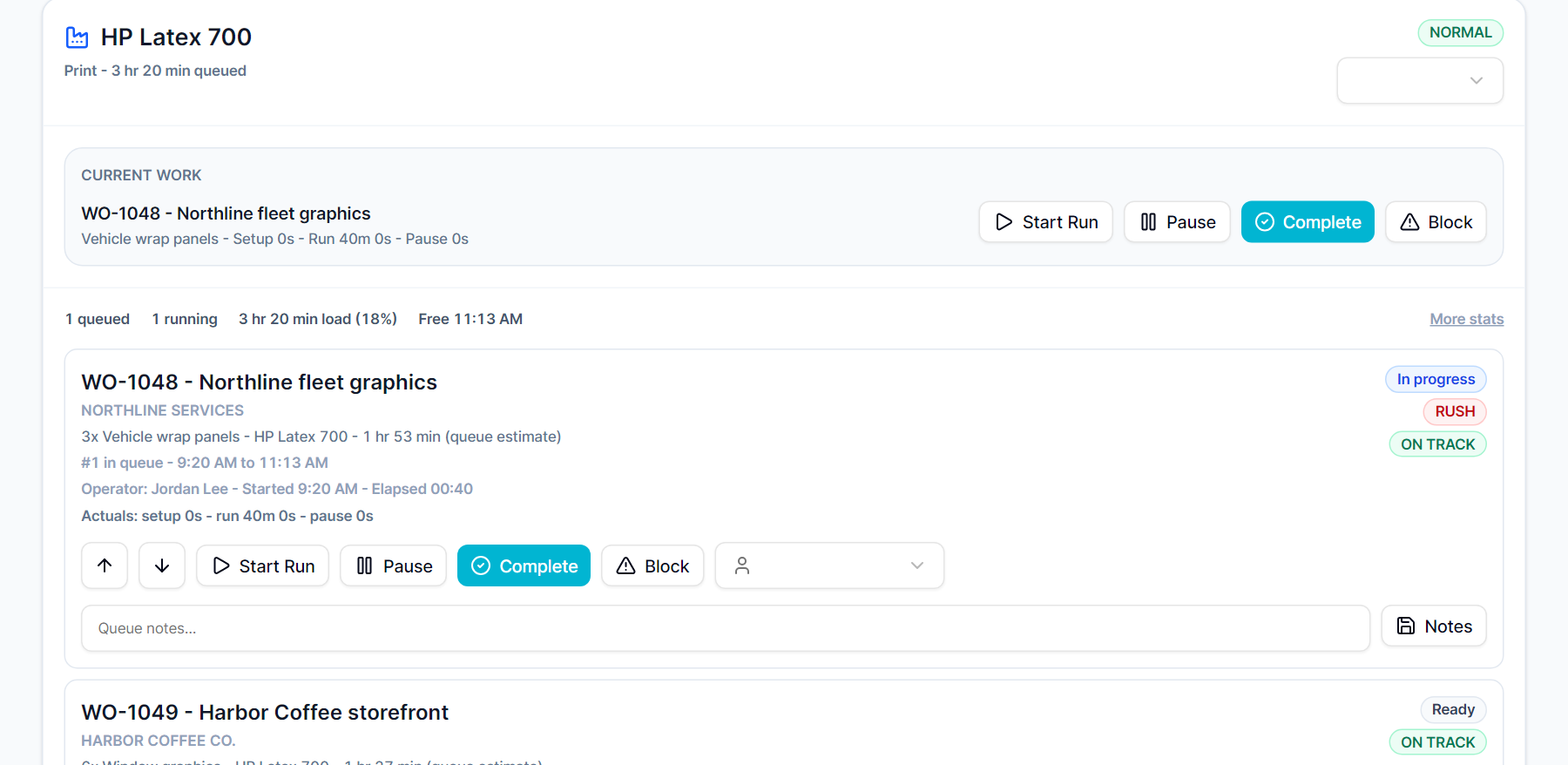
Machine Queue & Equipment Workflow — Meet SIGNEXA platform interface

Your Equipment Floor, Finally Organized

Most shops manage their equipment load on whiteboards or in someone's head. When a job needs the large-format printer, the router, and the flatbed in sequence — and multiple jobs are fighting for the same machine — chaos is inevitable. Meet SIGNEXA's Machine Queue brings every piece of equipment into a single, filterable production queue with AI-assisted setup batching to minimize changeover time. Works hand-in-hand with Shop Floor Management and Digital Job Tickets.

Per-Machine Job Queue

Every machine and workstation has its own queue. Operators see only what's relevant to their station — in priority order.

Setup Batch Grouping

AI groups production steps that share the same machine, material, or color profile into batches — minimizing setup and teardown time across the day.

Production Step Requirements

Each job line item can define specific machine requirements — substrate type, equipment name, department. Steps waiting to be queued surface automatically.

Every Machine. Every Job. One Screen.

The Machine Queue displays all active production steps organized by equipment station. Filter by machine, department, or operator. Drag items to reorder queue priority. Assign specific team members to each step. See which jobs have planned requirements that haven't been queued yet — so work that falls through the cracks becomes visible before a deadline hits.

Machine queue equipment workflow management dashboard

AI Setup Batch Recommendations

Running the same substrate through a machine six times in a day when you could batch it into one setup is a real margin leak. Meet SIGNEXA's Production Setup Batch engine analyzes your queue and groups steps by machine, material, and profile — suggesting batches that reduce changeover time. Batches move through Suggested, Planned, and In Progress stages, and each step within the batch is tracked individually.

AI production batch grouping for sign shop equipment

Frequently Asked Questions

Everything you need to know about Machine Queue & Equipment Workflow.

How do I add my shop's equipment to the Machine Queue?
Go to Settings > Machines (Stations) to add each piece of equipment with its name, department, and type. Common stations for sign shops include: large-format printer, latex printer, solvent printer, flatbed router, laser cutter, heat press, laminator, and vinyl plotter. Every station you add appears as its own filterable queue lane.
Can operators log time directly against machine queue items?
Yes. Time entries tie directly to production steps in the machine queue. An operator clocks in on a specific step, clocks out when complete, and that time rolls up to job-level labor cost reporting in the Timesheets module. This gives you accurate machine utilization data and true per-job labor cost — not estimates.
How does the AI decide which production steps to batch together?
The Production Setup Batch engine groups steps that share the same machine and similar production characteristics — same substrate, same color profile, same material width, or same service preset. Batches are presented as suggestions for your production manager to review and approve before the floor acts on them. You stay in control; the AI just surfaces the opportunity.
How is Machine Queue different from Shop Floor management?
Shop Floor is the macro view — jobs moving through stages from order intake to delivery. Machine Queue is the micro view — which production steps are waiting, active, or batched on each specific piece of equipment. Shop Floor answers "where is this job in its lifecycle?" Machine Queue answers "what does the large-format printer need to run next and in what order?"
Can I see the queue for all machines on one screen?
Yes. The all-machines view shows every station's queue in a scrollable dashboard. Each lane shows the active step, the waiting queue, and any batched groups. Filter by department (Print, Finishing, Routing) to focus on a subset of your floor. Managers get full visibility; operators filter to their own station.
What happens when a machine goes offline or breaks down?
Mark a machine as Offline in settings. All queued steps for that machine surface a warning flag and can be reassigned to an alternative station in bulk. The system does not auto-reassign — your production manager makes the call — but the affected steps are immediately visible so the floor can adapt without losing track of what was waiting.

Ready to Transform Your Workflow?

Join thousands of shops scaling their operations with Meet SIGNEXA. No credit card required.
